
This tutorial will show you how to setup a Gmail account on your iPhone.
�
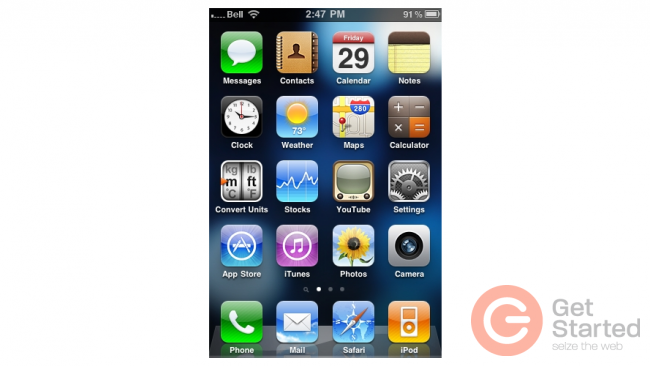
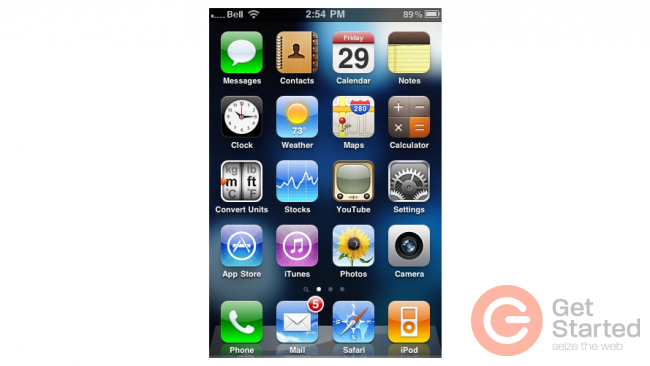
1) First, locate and press the "Settings" icon. It may be on a different screen or in a different location than shown here.
�
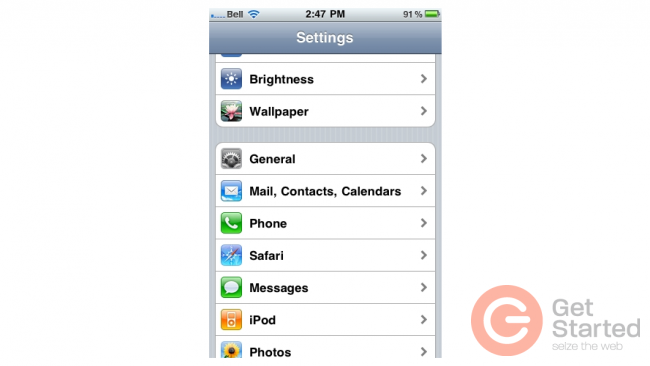
2) Then select "Mail, Contacts, Calendars".
�
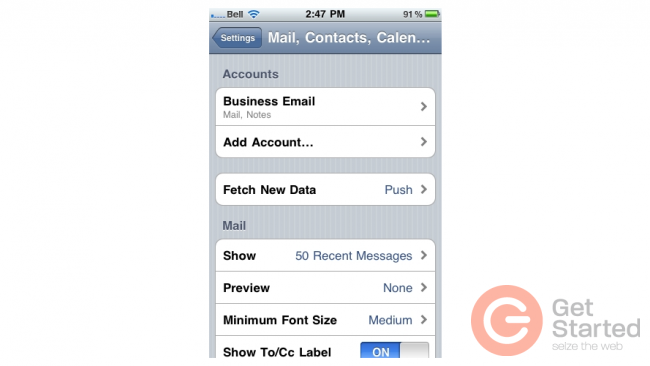
3) Select "Add Account".
�
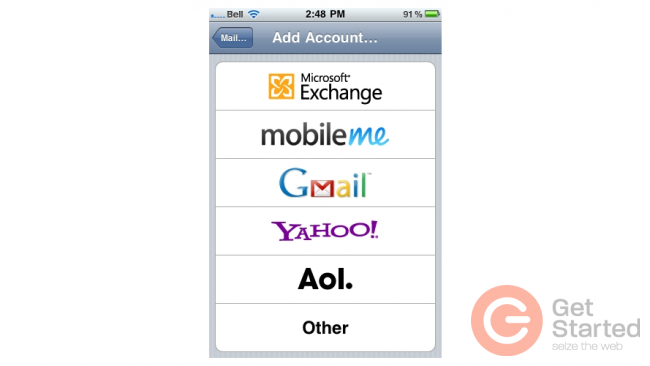
4) Then choose "Gmail".
�
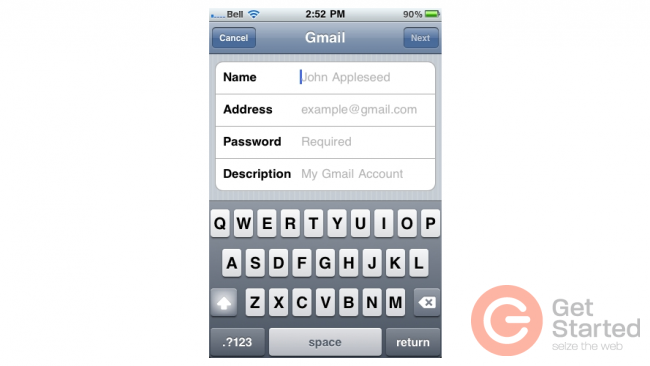
5) Enter the Name, Email address, and Email password of the Gmail account you're adding.
�
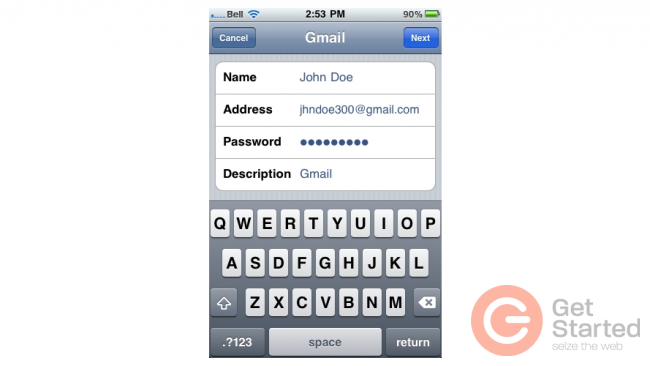
6) A "Description" will automatically appear, but you can change it if you like. When finished, press "Next".
�
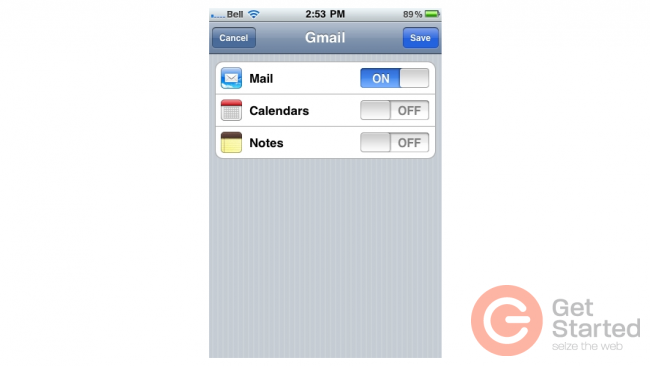
7) Press "Save".
�
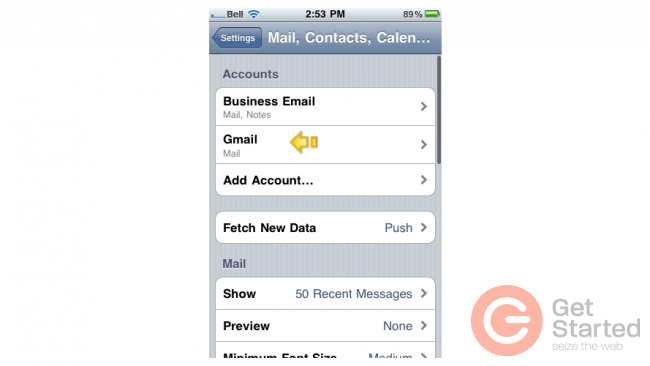
Success! The Gmail account has been setup on the iPhone, and you can see it here listed under "Accounts".
�
�
8) Let's return to the home screen by pressing the Home button on the iPhone.
9) To check your email, press the "Mail" icon here (Note: the icon may be in a different location on your iPhone).
�
10) If you have multiple email accounts setup in your iPhone, they'll all be listed here. Select the Gmail account we just setup...

�
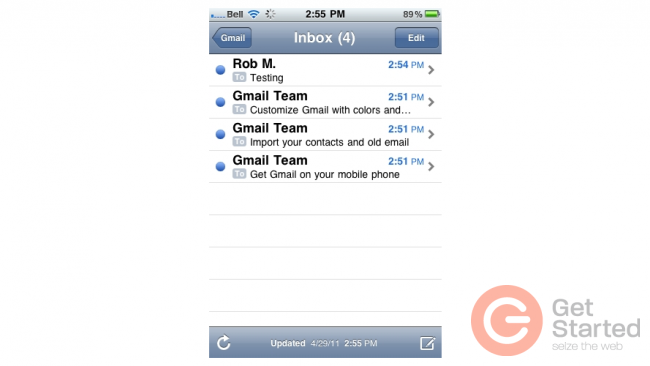
11) ... and any emails in your inbox will be displayed here. Click an email header to see the email.
�
That's it! You now know how to setup a Gmail account on your iPhone.